How I Manage My Entire Life with a Custom App I Built in Claude Code
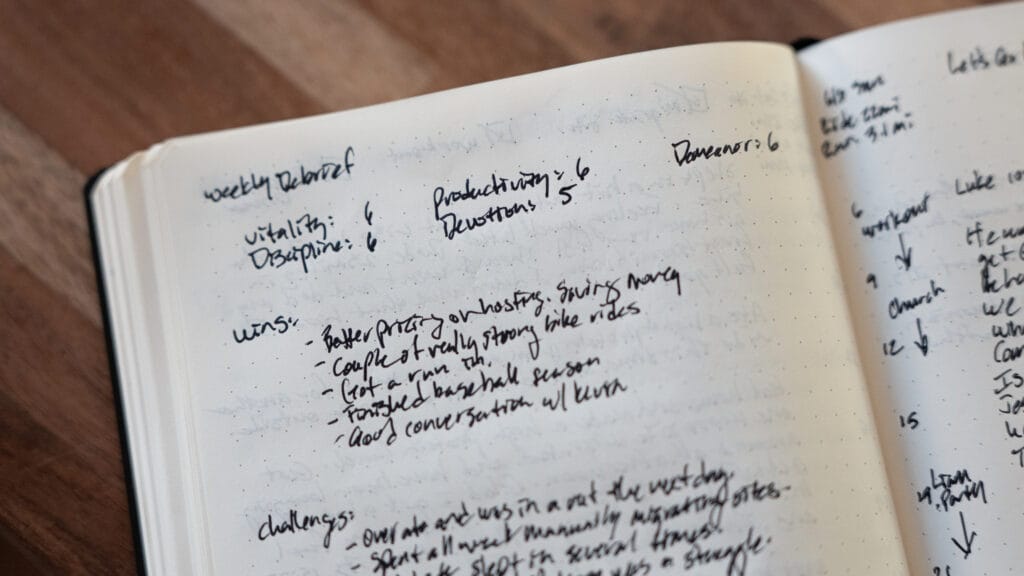
For years I’ve tried to put together a productivity system that actually fit my life. If you’ve followed me for a while, you’ve watched me cycle through Notion, Todoist, Obsidian, apps on iPhone and iPad and Android, jumping around, always looking for the setup that would finally get the right information into the right place without falling apart.
The problem was never the tools. The tools are good. The problem is that I have several distinct areas of life that I’m constantly switching between: making YouTube videos, building websites and running marketing campaigns for clients, my family, and everything else, and no single tool could tie all of it together. So I’d build something elaborate, and the elaborateness itself became the reason I stopped using it.
A few weeks ago I decided to stop looking and build my own system in Claude Code. This is a complete walkthrough of what I built, how it works, and how I made it, the same ground I covered in my video, written out so you can read it at your own pace.
One thing up front: the friction of getting information into a system is what prevents me from using the system at all. That’s the principle the whole thing is built around. So let me start with capture, because that’s where it lives or dies.
Capturing information without friction
[SCREENSHOT: Apple Watch with the shortcut open, showing the “Capture to Dashboard” option]
The fastest way I get something into the system is from my wrist. I have a shortcut on my Apple Watch — I tap it, choose “Capture to Dashboard,” and speak. Something like:
“Schedule a task for home to change out the water filter in the refrigerator at 2 p.m. tomorrow.”
I hit done, and it’s captured.
The watch shortcut isn’t an app — it’s a shortcut that records my voice, transcribes it, and sends it into the system. AI then ingests that text, cleans it up, and files it where it belongs. It strips out my ums and ahs and the thinking-out-loud, rewrites it cleanly, and assigns it to the right place automatically. I don’t have to touch anything.
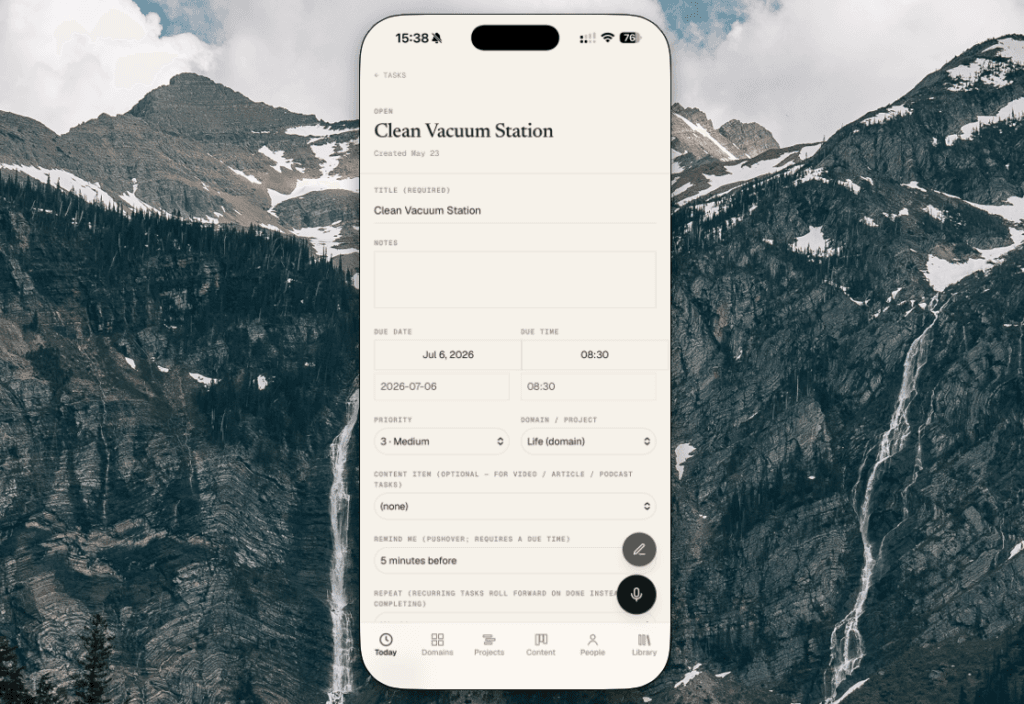
When I open the web app, the task is there — assigned to Home, due tomorrow at 2 p.m. I get a notification confirming it was added, so I can glance and confirm everything landed where it should.
This isn’t a native app I had to develop and submit to an app store. It’s a web app I saved to my home screen. It loads like an app, sends notifications like an app, but it’s just a website behind the scenes.
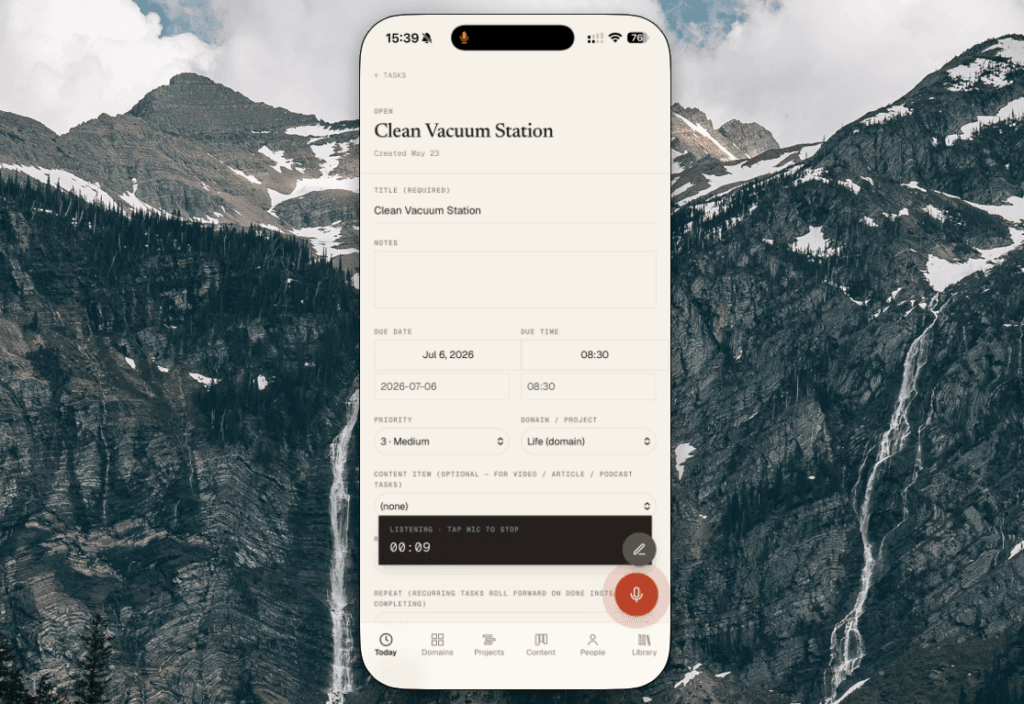
On the phone I have two ways to enter things — voice directly in the interface, or text for those times I don’t want to talk into my microphone. Same result either way.
The Today screen
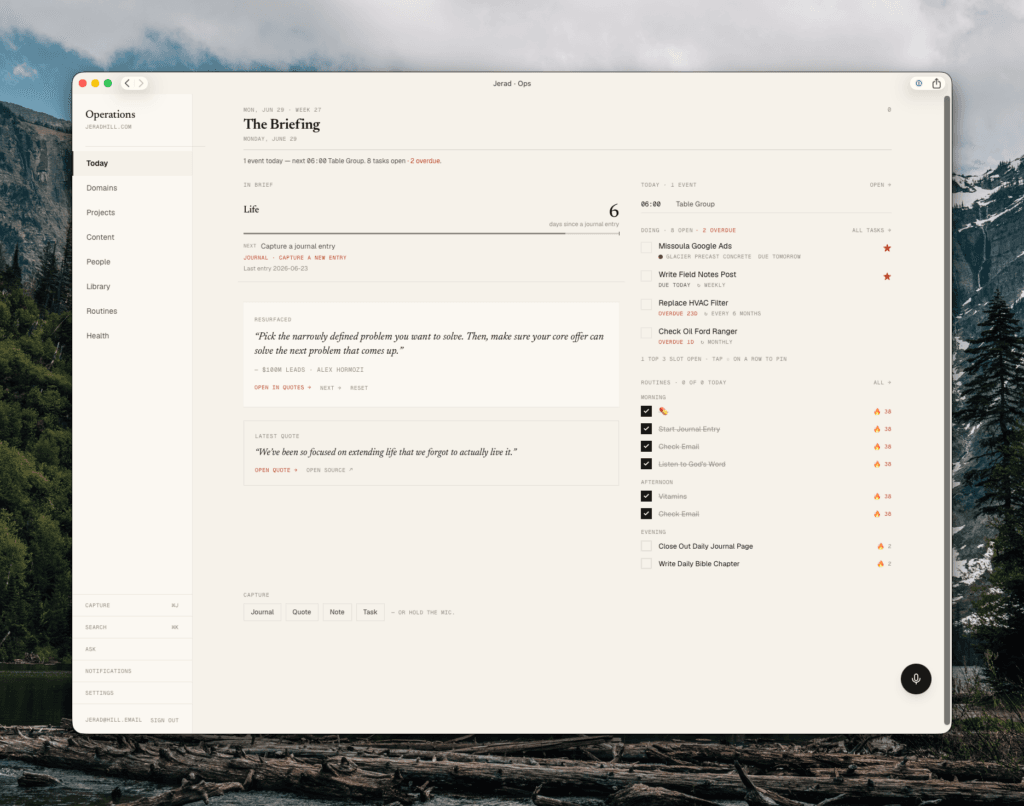
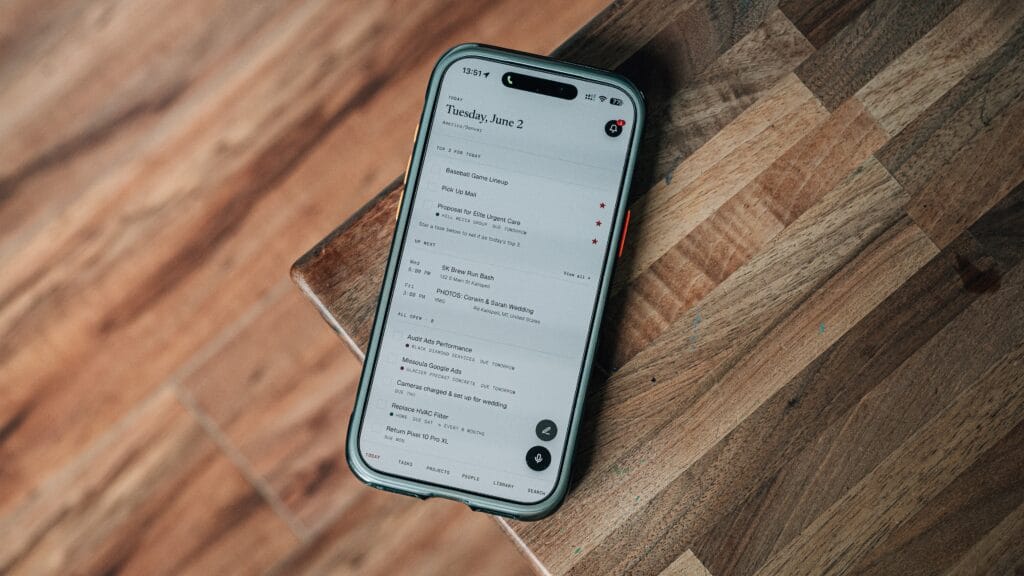
The Today screen is where I start. At the top are my Top 3 tasks — the three things I want to accomplish that day. Everything else comes after those. I can promote any task into the Top 3 by tapping the star, and check things off as I finish them.
Below that are my calendar entries, pulled in live from Google Calendar through the API. I’m not replacing Google Calendar — there’s too much that works well about a standard calendar — so the system reads from it and keeps itself updated in the background. My tasks and projects, though, live inside this system and are managed here.
Then all my open tasks, sorted by due date.
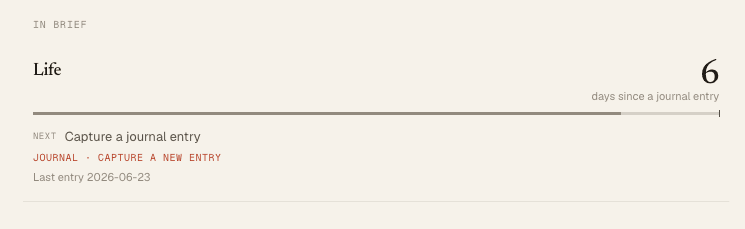
There is a section called “resurfacing “In Brief”. This solved a real problem for me. If a project went a while without me touching it, there was never an easy way to know — unless I’d manually set a reminder. Slipping updates automatically when a project, task, or area has gone a certain amount of time without being looked at or worked on. It surfaces the things quietly falling through the cracks.
Routines, separated from tasks
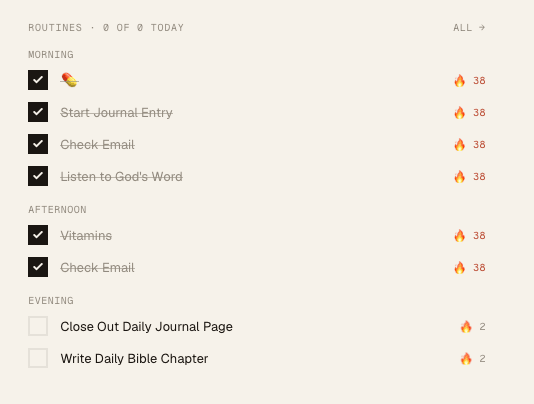
For years my daily routines — take my vitamins, check email, that kind of thing — got mashed together with my actual tasks and reminders into one overwhelming pile. Opening it felt like staring at a vat of stuff.
So routines live separately now. I can view them on their own, toggle them by time of day, and there’s a streak tracker on the right. If a morning routine is still unchecked in the afternoon, I can see I missed the window. Checking items off updates the streak.
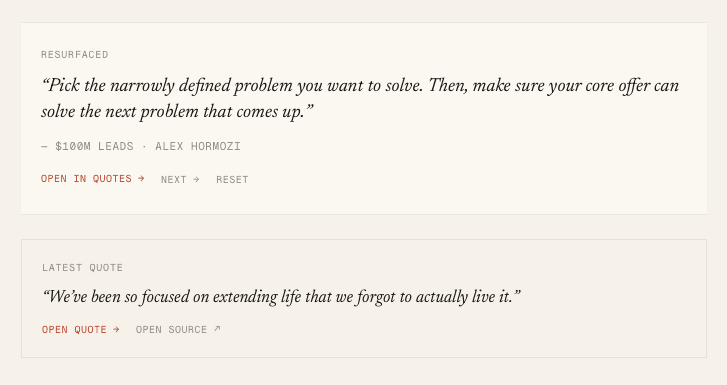
Below that is a section I call Resurfacing. One journal entry, quote, or saved verse rotates in daily. I have hundreds of notes and highlights that, in every previous tool, I’d enter and never see again — they’d go there to die. This brings one back every day so something I cared enough to save actually crosses my path again.

There’s also a Needs Review Inbox section. If I create a note and AI can’t figure out where it goes, it flags that for me at the right time so I don’t lose something I meant to revisit.
Capture shortcuts and global search
On the computer there’s a keyboard shortcut — Command+J — for instant text capture, the same as on the phone.
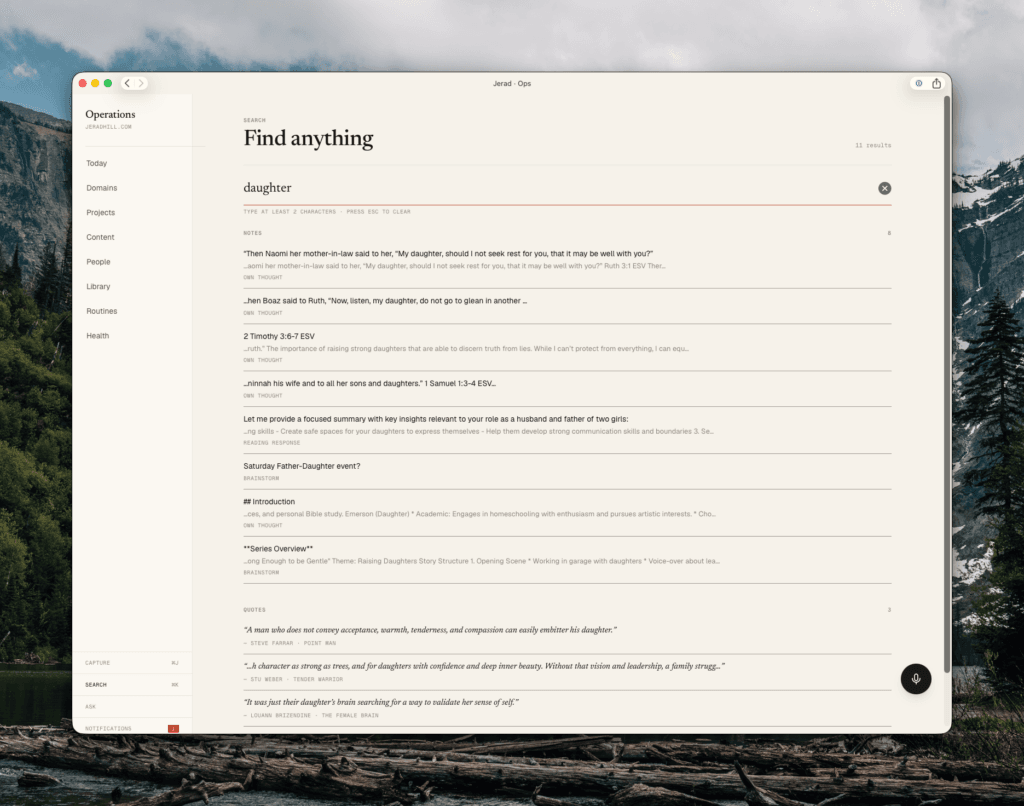
There’s also global search. If I search “daughter,” I get every note, quote, and library item that mentions it. And because the whole system runs on the Anthropic API, I can chat with all the information in my database — ask questions and get answers back from my own accumulated context. The more I add, the more it has to work from. It already has a lot, because I imported hundreds of notes, quotes, and journal entries from my old tools when I set it up.
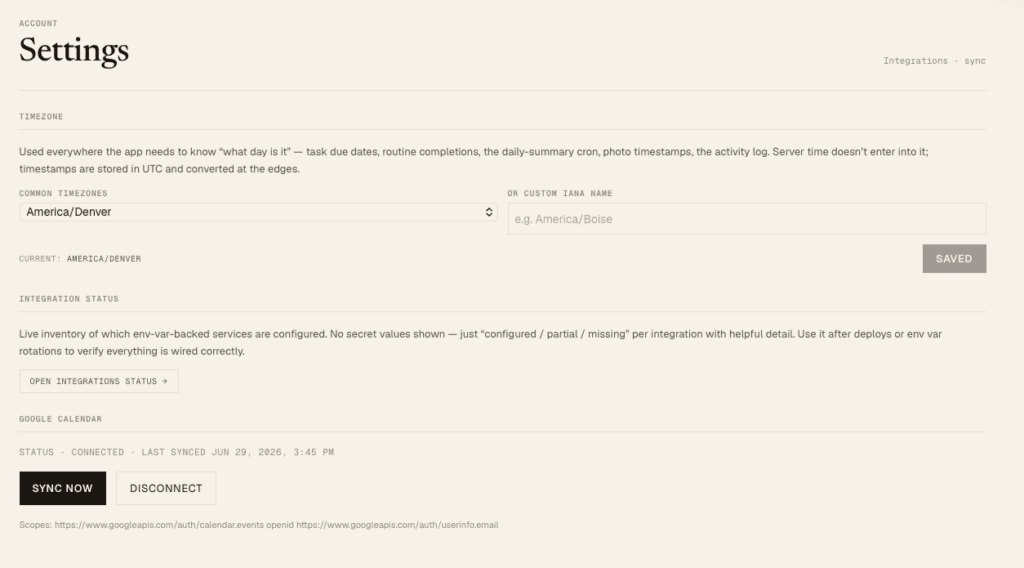
The settings page is where I confirm my Google Calendar connection is healthy, force a sync if needed, and check that all my integrations are connected and working. Green check marks tell me everything’s good.
Tasks
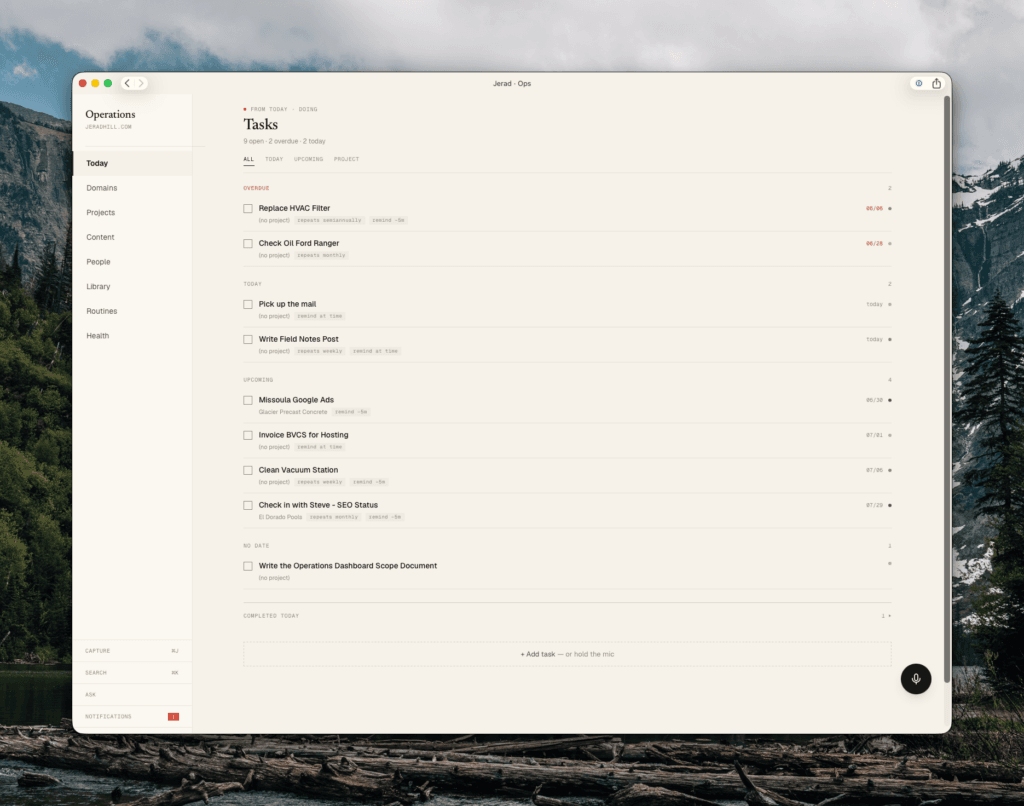
Tasks can be sorted by open, done, or all, and grouped by project or area. Each task can connect to a project or area, get a priority, link to a content item, and carry reminders.
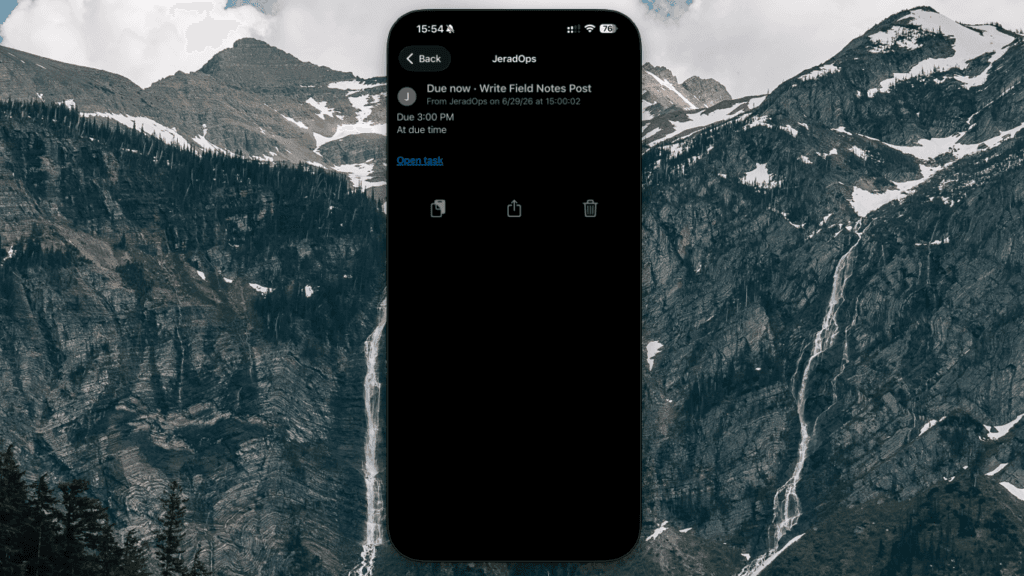
Those reminders send real push notifications. I use Pushover — an app and API that lets my dashboard send notifications to my phone. I get reminders about tasks, alerts when I’ve missed a routine, and a daily summary. I can see all of those notifications inside the app too.
Tasks can also be set to recur, so they regenerate automatically once completed.
Routines, in depth
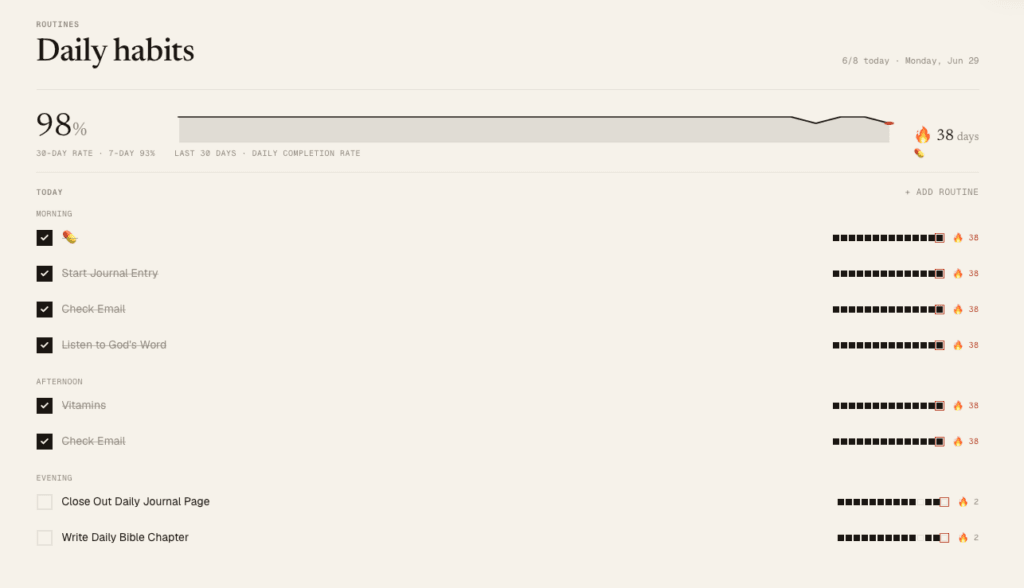
Routines are a big one. I have daily routines I run through every morning, afternoon, and evening. But I can also set routines for a specific stretch of time — like those streak apps that let you commit to 30 days of something.
Setting one up is simple: a name, an optional description, time of day, whether it notifies me, and whether it’s an ongoing streak or a fixed number of days. For example, in June I want to run a 5K every day for the month, so I set a 30-day recurring routine starting June 1.
When a streak ends it moves to an archive, and a bar graph tracks the ebb and flow of my consistency over time.
Projects, retainers, and areas
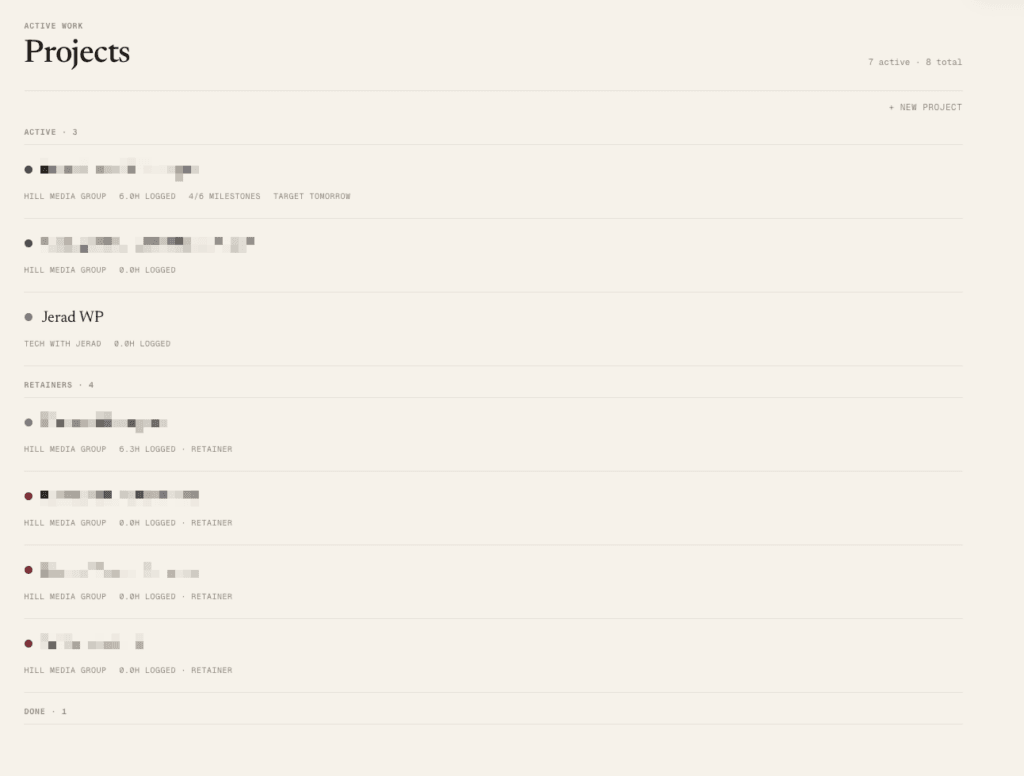
This is where Notion failed me hardest. I have three different kinds of things here and they don’t behave the same way.
A project has an end date — a website I’m building that wraps up in 30 days. I can set milestones with completion percentages, add tasks that flow into my main task list but stay linked to the project, and build checklists.
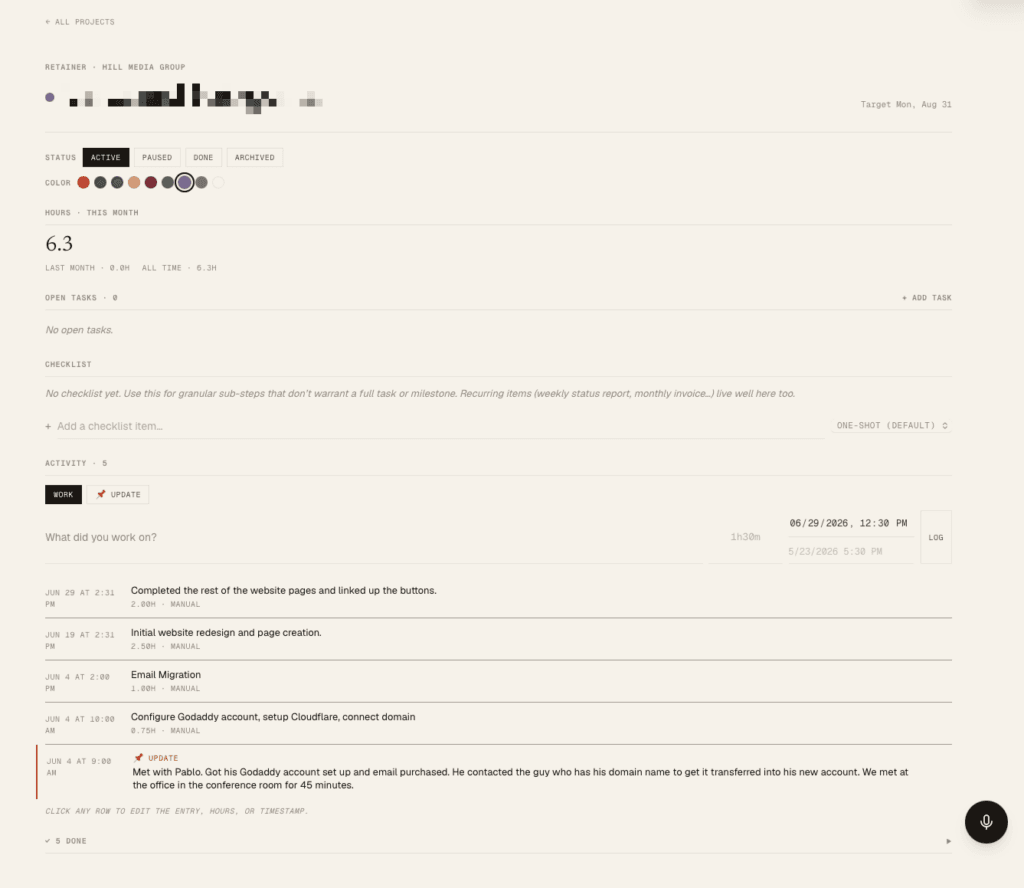
Better yet, I can save checklist templates. Every time I build a website I go through the same steps — get domain access, set up hosting, install WordPress — so I don’t want to re-enter those each time. I just apply the template. I can also log activity and hours, which matters because I’m prone to spending too long on things, and because some projects bill by the hour.
A retainer is different — ongoing client work with things that recur every month. In a standard project tool I’d have to manually recreate those every month, which was a chore. Here, recurring tasks and checklist items reload automatically at the start of each month, and anything overdue carries forward.
An area is something I spend time on that isn’t a client project — work around the home, Hill Media Group, my own ventures. It gives me a place to assign and organize tasks and look back at the history.
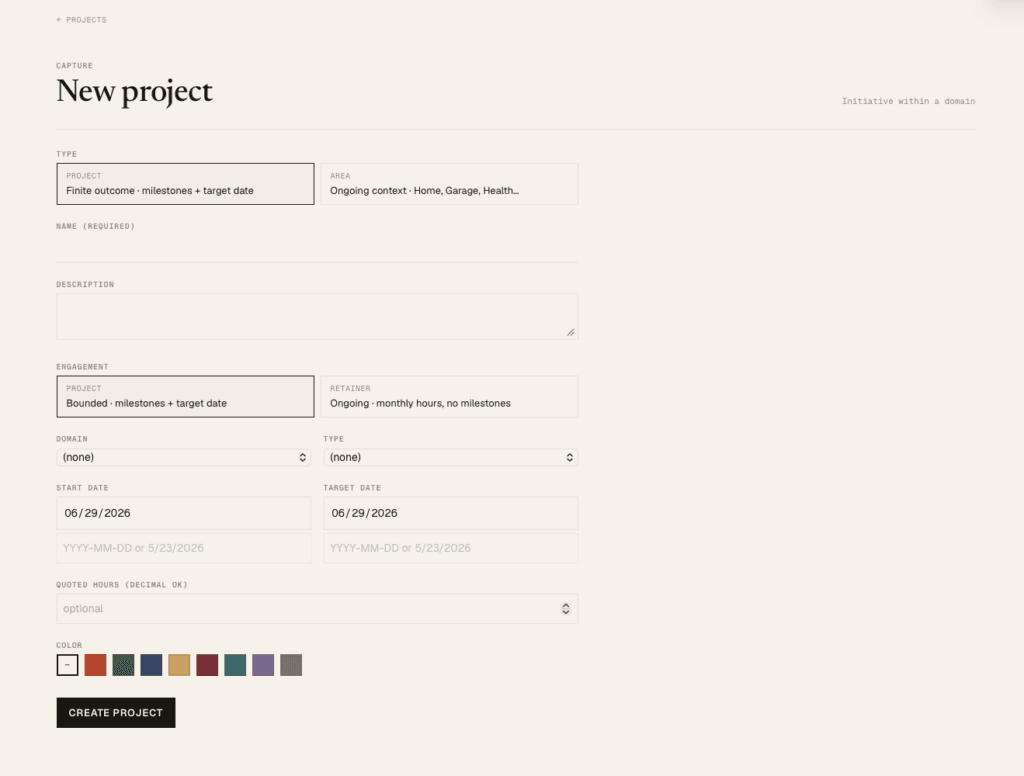
When I create something new, I choose whether it’s a project or an area, and whether an engagement is a project or a retainer. Everything updates on the fly and saves so it behaves correctly going forward.
Content
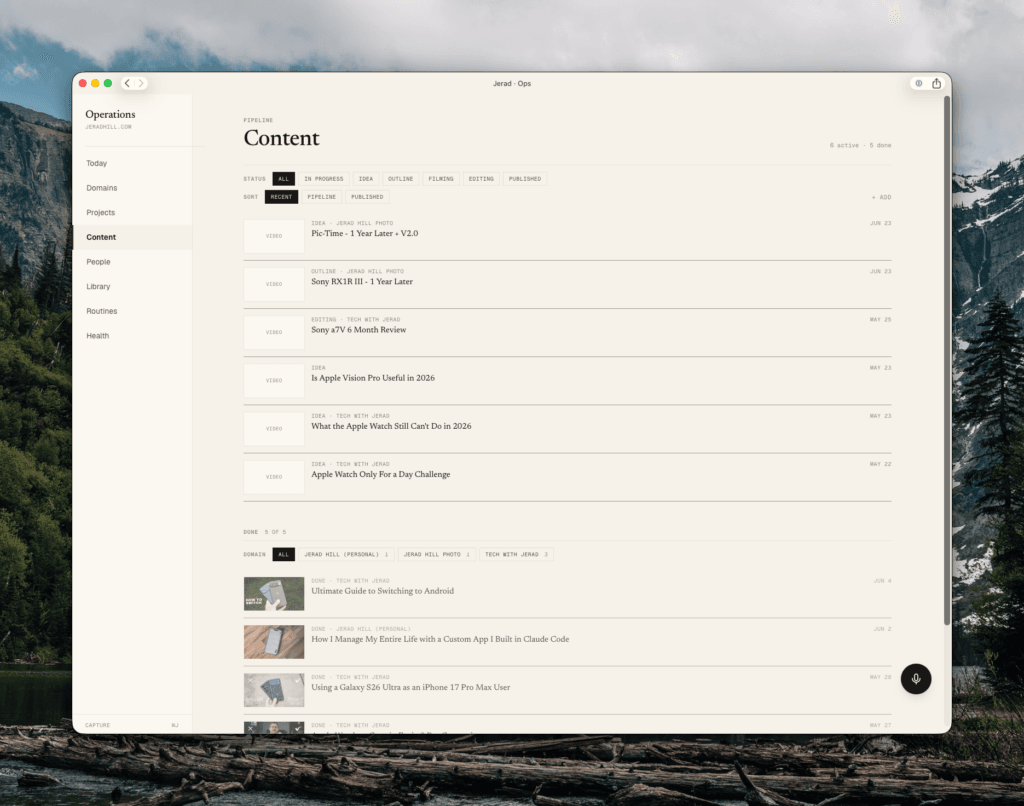
This section is specific to me as someone who makes YouTube videos and writes articles. I track each piece of content — its status (idea, editing, waiting, published), its type (video, article, podcast, newsletter), the channel or domain it belongs to, the URL once it’s live, the publish date.
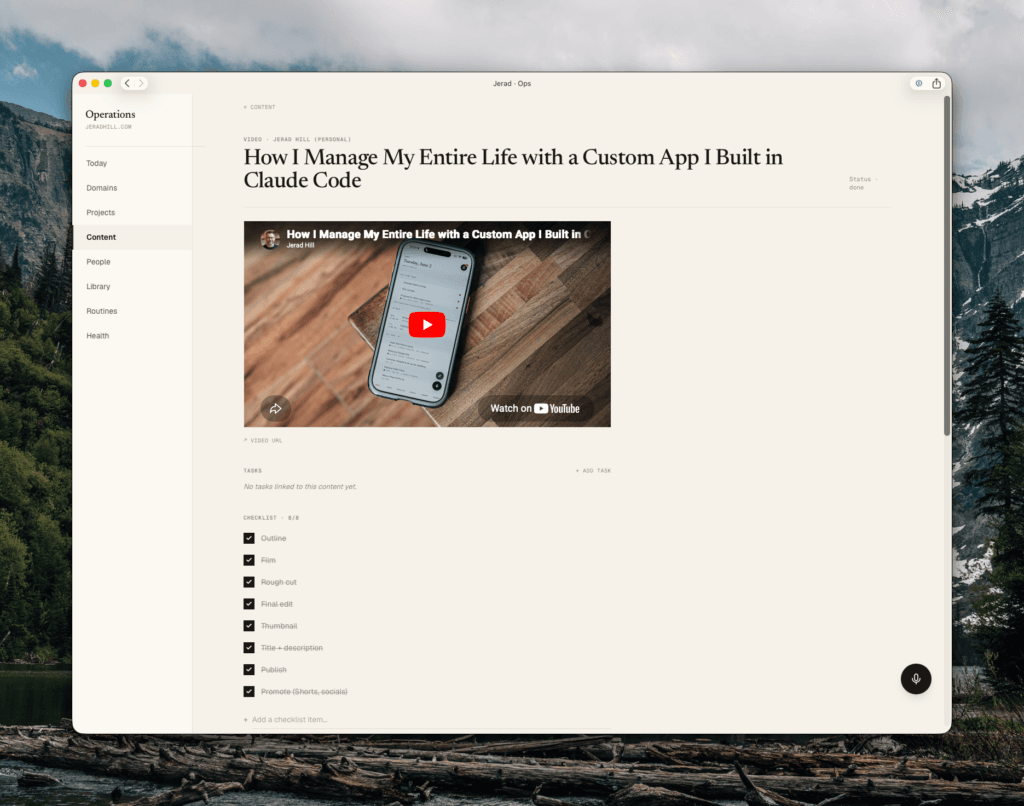
Each item embeds the finished video, shows the checklist I worked through from outline to promotion, links any associated tasks, and has a markdown box where I keep my outline. Everything about a given video or article lives in one spot. I built something like this in Notion — it was the most useful thing Notion did for me — but this is cleaner and integrates with my tasks and projects.
People
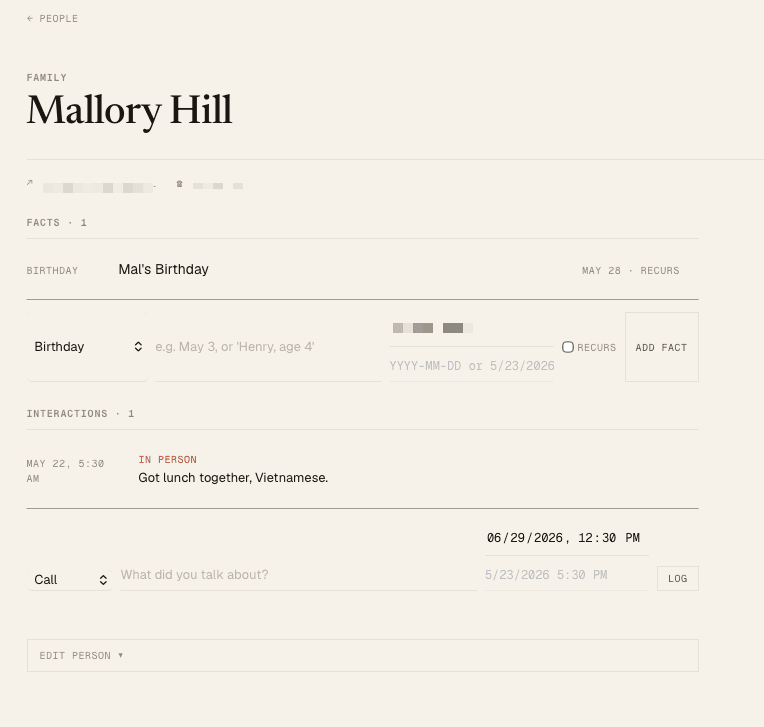
This is my relationships database — a personal CRM, though I’m careful about how I use it. In a recent Substack post I wrote about wanting to remember important things about the people closest to me, and how the best way I’ve found to commit something to memory is writing it down by hand in my journal.
But a journal goes on the shelf. That information isn’t readily available later. So I put the things I genuinely don’t want to forget here — a birthday, an anniversary, something about someone’s kid, a shared interest, a follow-up — and I can log interactions too. I’m not trying to turn relationships into a database. I’m making sure the things I care about remembering don’t disappear onto a shelf.
Library
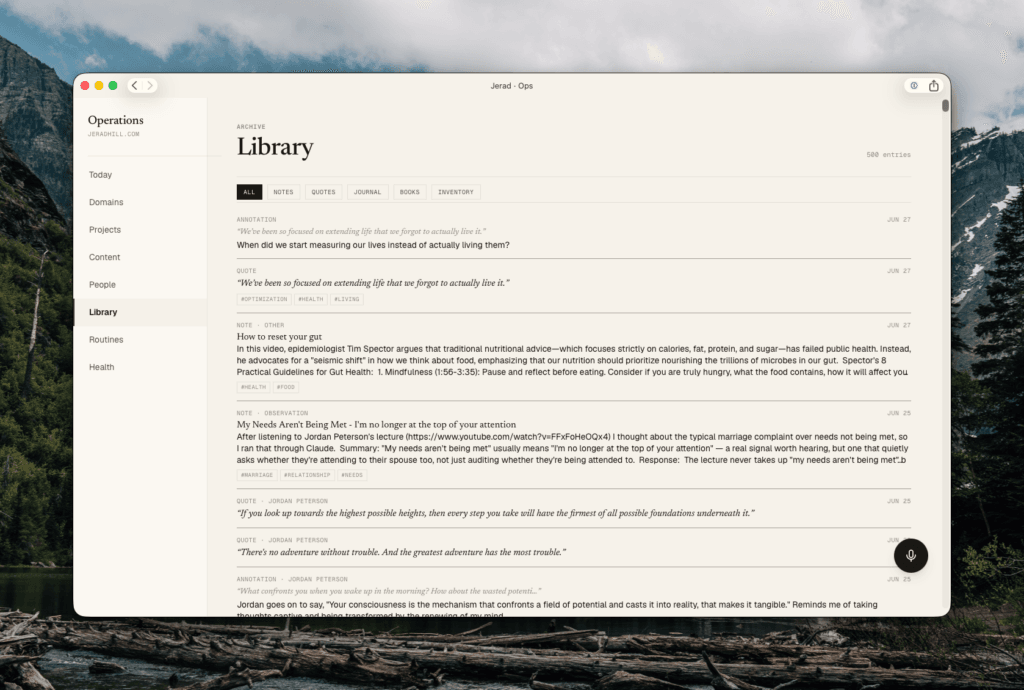
The library is where a lot comes together. I keep notes, journal entries, quotes from books and podcasts, and highlights from my Kindle reading — all in one place I can actually access.
Notes carry a source and tags, and I can flag one for review or attach an image.
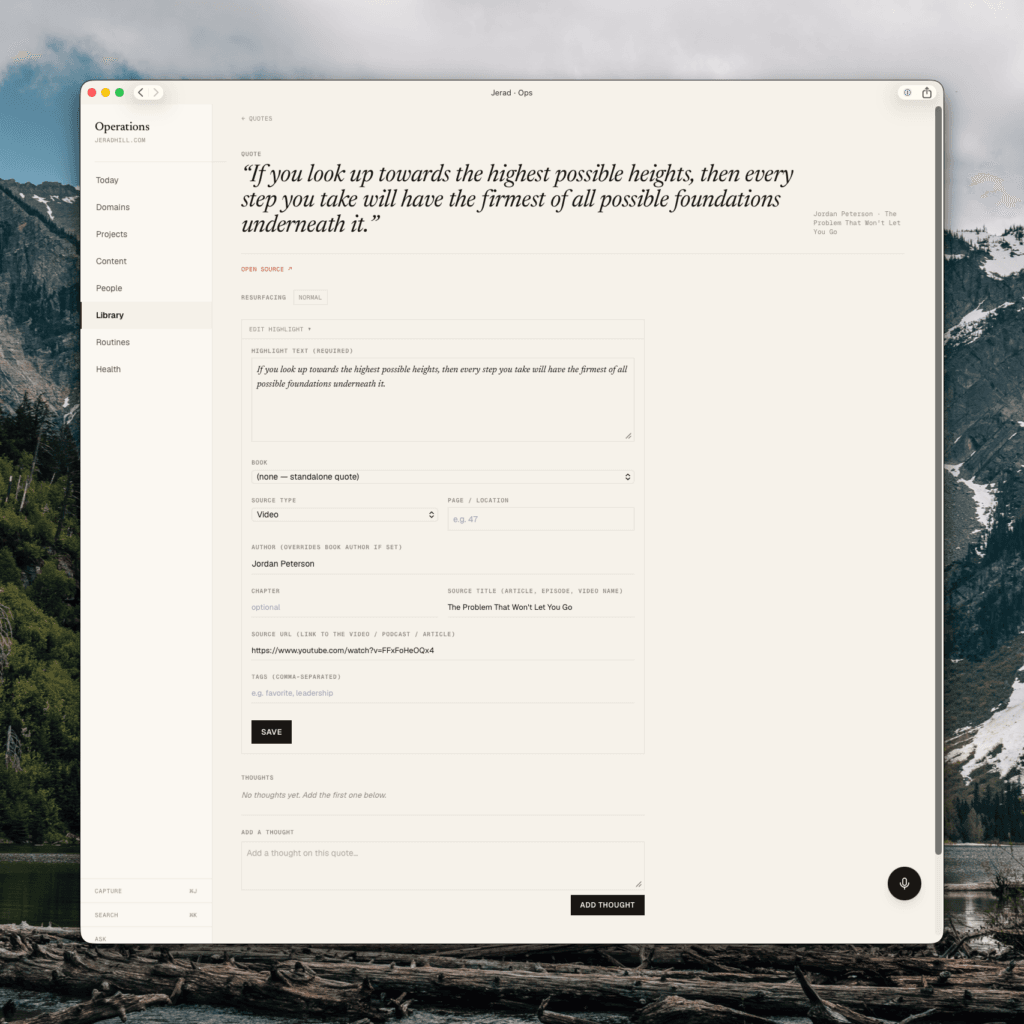
Quotes have their own sorting — by book, article, podcast, or conversation — and tags. What I like most is that under each quote I can add thoughts, and add to them over time. As I revisit a quote and think about it differently, or notice how I’ve applied it, I add to the feed. The quote becomes a living thing instead of a dead clipping.
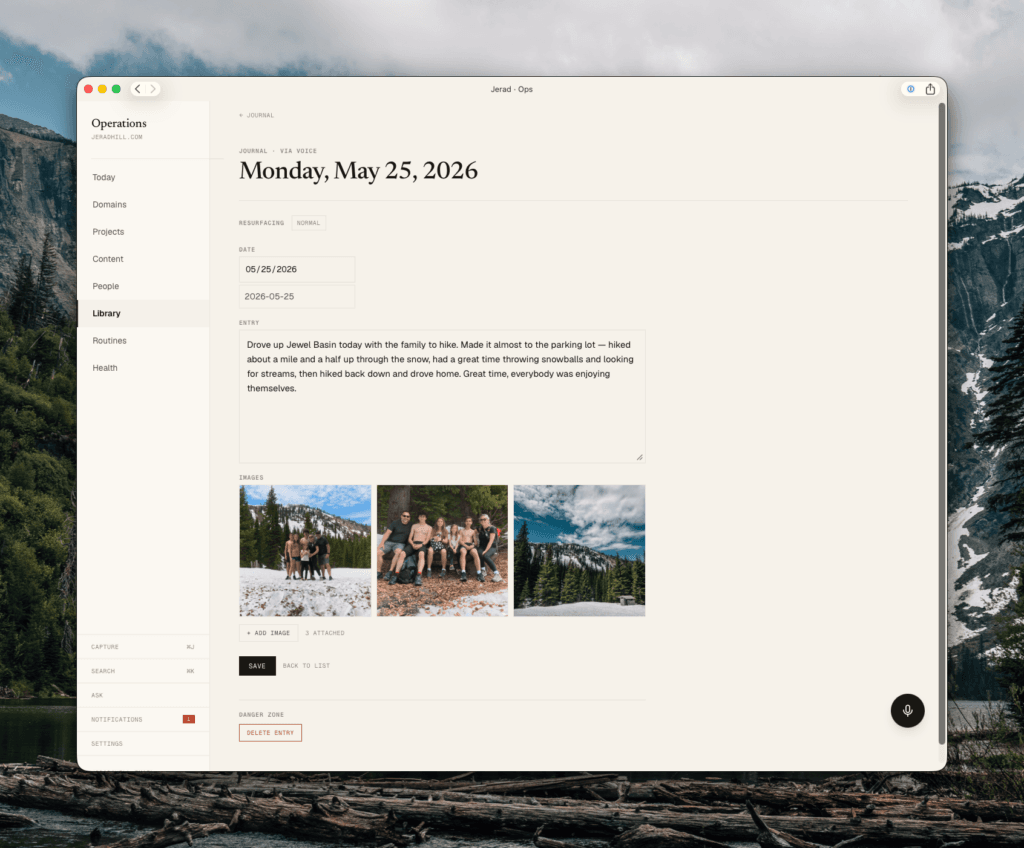
Journal entries are simpler — text with maybe a photo or short clip, mostly added by voice. I still handwrite my daily journal with a pen, but when there’s something insightful I want findable later, I add it here. The next feature I’m building is photographing a journal page and having AI pull the insights out automatically.
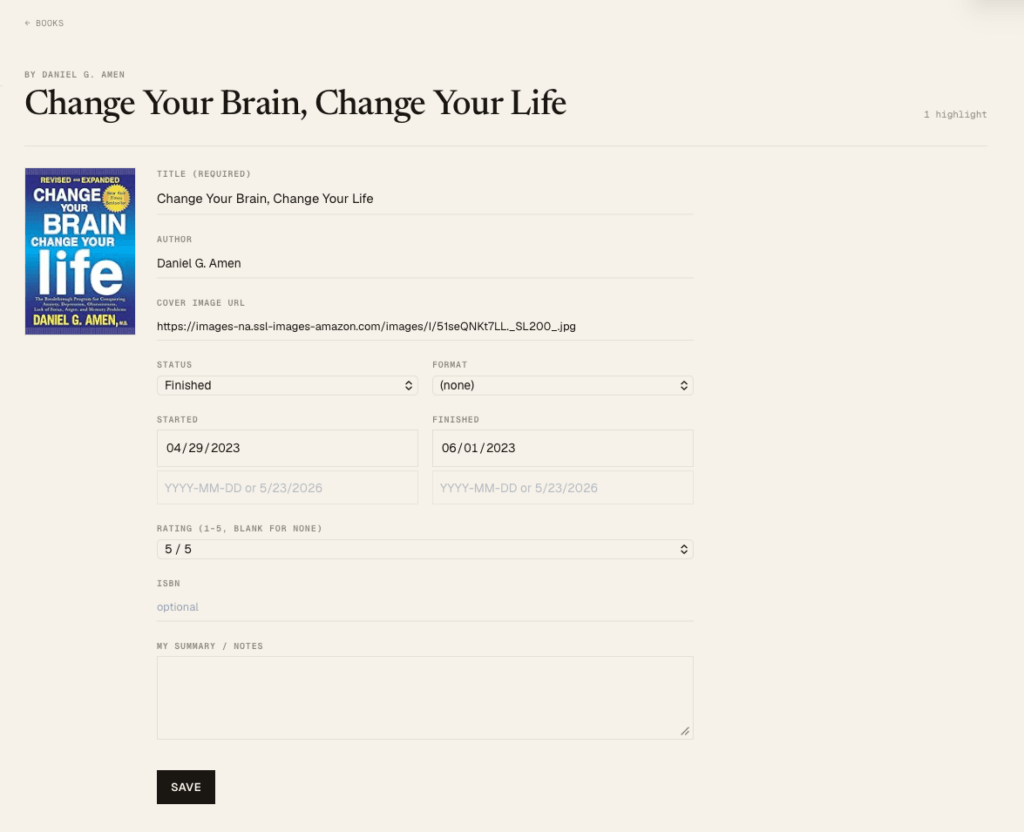
Books pull in automatically — cover, title, author, status (want to read, reading, finished, abandoned), format, start and finish dates, my rating and notes. All my Kindle highlights sync in as individual quotes, each able to carry its own thoughts underneath.
There’s also an inventory section I haven’t fully built yet. The idea: log the things I own with photos, so that if there’s ever a house or office fire I have an instant inventory for insurance — and so I’m a better steward of what I own, able to see what’s sitting unused and worth selling while it still has value.
Domains — the top level
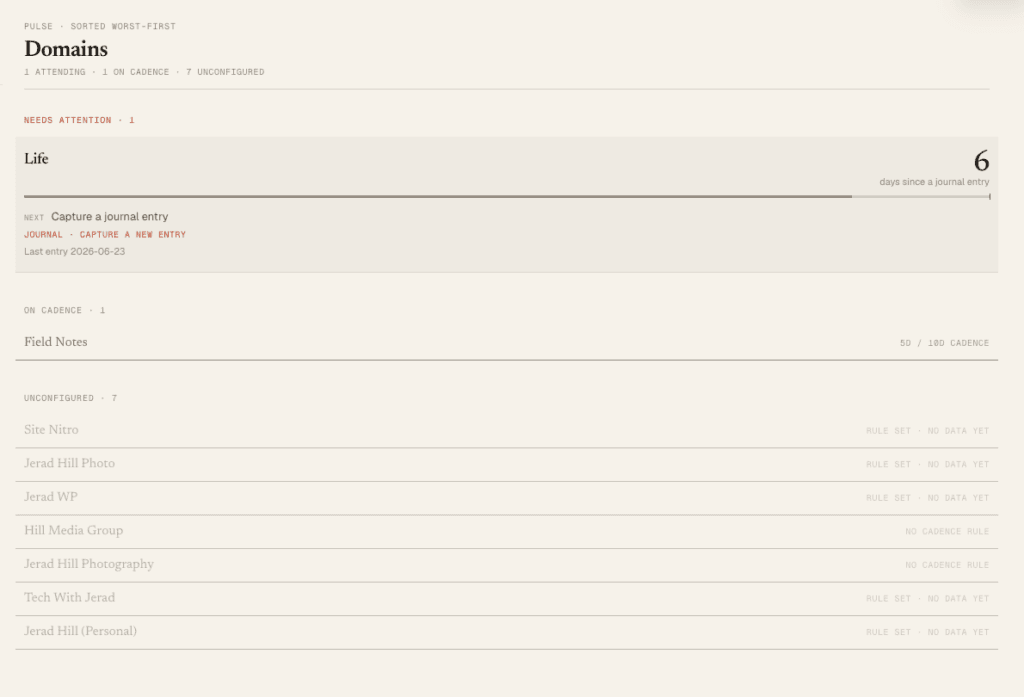
Domains are the highest level, where everything connects. Domains, projects, tasks, and routines all trickle down from a domain area: Field Notes, Hill Media Group, my YouTube channels, my photography business, Site Nitro. These are the top-level buckets everything else falls within.
How I built it
I built this in Claude Code, but it didn’t start there.
It started as a conversation. I opened a Claude chat and talked through the different areas of my life and how I organize them. I had it ask me questions, because mapping all of this out is hard — I could do it on paper, but talking it through and having Claude push back (“it might be hard to tie those together — what about this?”) helped me figure out the structure. Some suggestions didn’t fit and I said so, and we worked toward something that did. The result was a full spec document containing everything the tool needed.
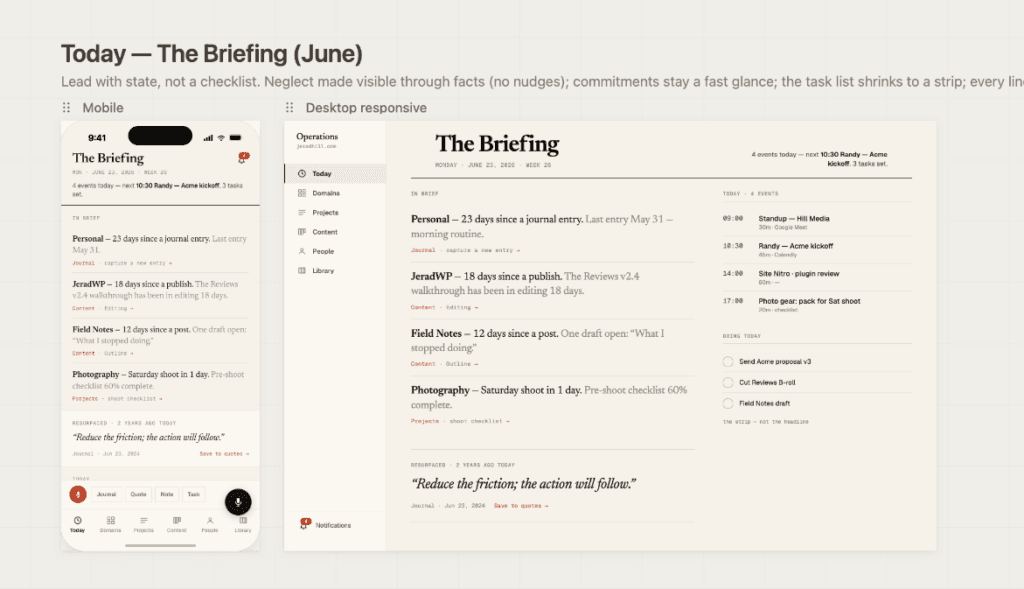
From there I took the spec into Claude Design and worked through the visual side — what each page looked like, the voice capture flow, the domain areas, the project views, the content pipeline. I downloaded the design files.
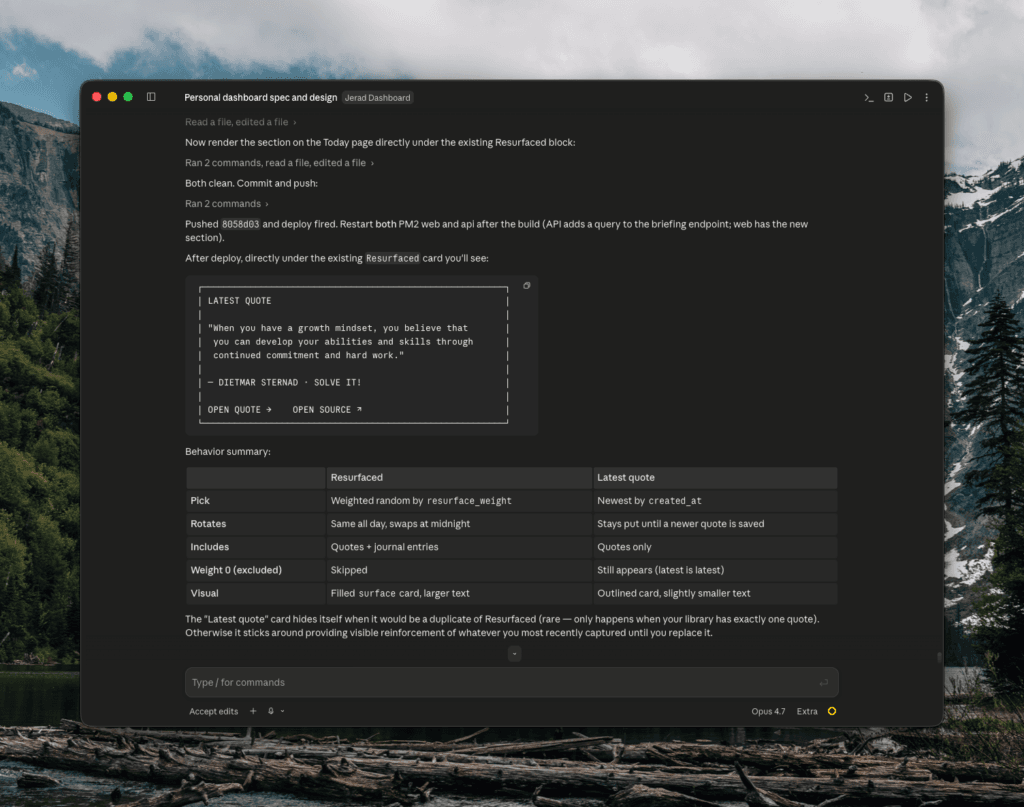
Then I brought the design files and the spec into Claude Code and started building. It was not one-click-and-ship. The chat was long and involved — from the initial files, to a dashboard running locally on my computer, to moving everything into a web interface I could reach from my laptop at home or from just my Apple Watch out running errands.
I’m hosting the Node.js project on xCloud, where I already host a number of client sites. It’s not the perfect environment for this, but it’s been stable and it’s been easy to push updates from Claude Code straight to the platform. The database runs in Supabase. xCloud hosts the infrastructure, Supabase stores the data, and I connected it to a real web address — username and password protected, with authentication — so I can reach it from anywhere, on any device.
Why this matters
There’s no tool out there that does this without either writing a pile of custom code or customizing an existing tool into oblivion — to the point where the friction of using it becomes the reason you abandon it. That’s been my track record. The tools on the market are great, but they’re not built for someone’s entire life, and I don’t want to jump between five of them.
Because I have a bit of a development background, can think that way, and have access to Claude Code, I built the whole system in a couple of days and started using it immediately.
For me this isn’t about pouring my life into a tool. It’s about being a better steward of what’s in my life and making sure nothing slips through the cracks. The tool should get out of my way so I can stay focused — not spend half my day figuring out where I’m at on a project or what needs updating.
If you want to try something like this, here’s my one piece of advice: open a Claude chat and start a conversation. Explain what you’re trying to accomplish, how you do it now, and where the friction is. Work toward a spec document. Then spend real time with that document and ask yourself honestly whether it’s going to solve your problems or just add to them — because it’s very easy to build something that becomes a new friction point and a new frustration. That’s the thing to avoid.
I’ll be sharing more about how I use AI across my work and life in the coming weeks. If that’s useful to you, subscribe so you don’t miss it. And if you have questions about anything in this build, reply and ask — I read every one.